Change Password
General
There are three ways to log in to Webdesk
- Single sign-on: after the first login, no further password entry is necessary to enter the system.
- Password: this login to the system is activated by the administrator/HR, see Assign and change password (admin side)
- Two-factor authentication: individual decision of the employee or general decision of the company
In Webdesk, the password can be changed in the following ways:
-
Change of the password by the user
The user changes their password via a separate menu item in the settings
-
Change of the password by the administrator
The password is reset by the administrator to a defined default password
Password change by the user
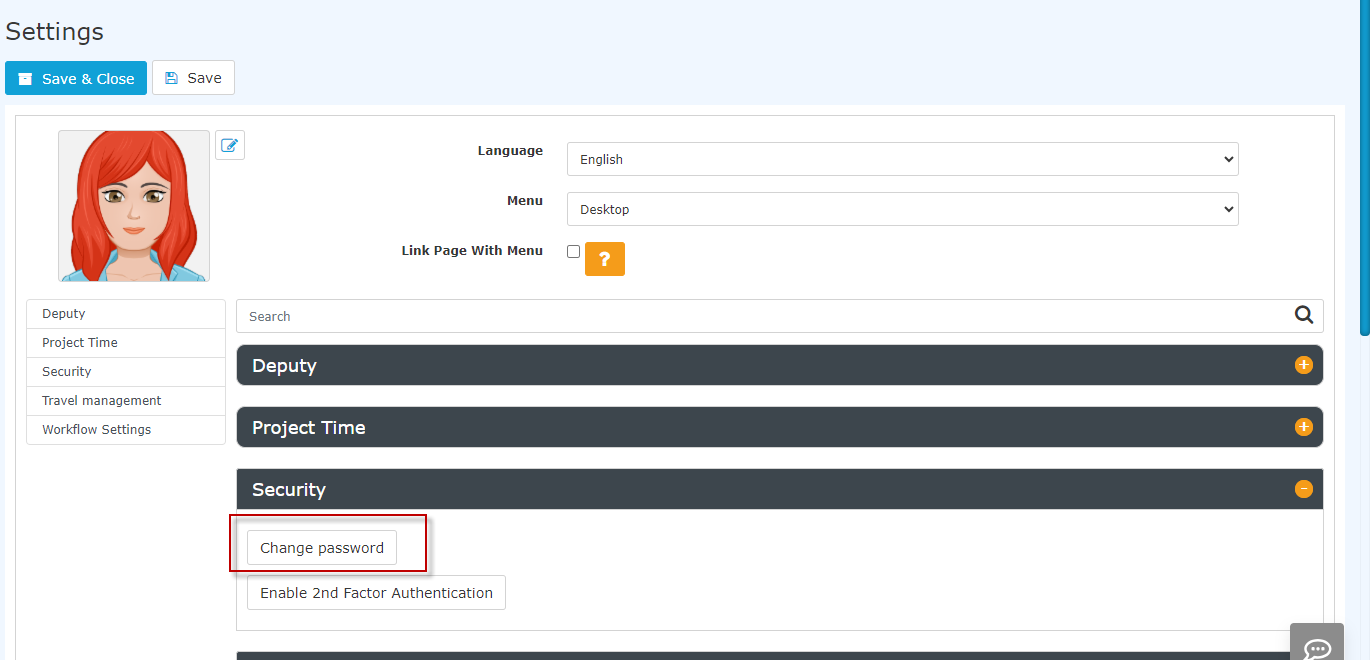
To access the user settings, please click on your profile picture (avatar) or your username in the top right corner in the browser view.
 |
| Vergrößern |
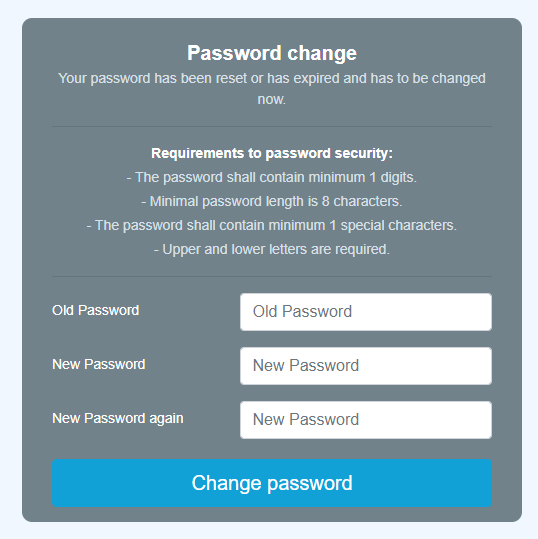
In the "Security" section, the user can change the password under "Change password". In the window that pops up after clicking, the old password and the new password twice must be entered in the change screen.
Password reset by the administrator
The administrator can change the password for the respective person via Administration --> Person. See chapter Assign and change password (admin side).
Keine Kommentare vorhanden.