FAQ: Adding employees to a group / ending a group membership
In the menu tree under Administration, select the item Groups.
This menu item provides a list of all created groups (permission groups and organizational units) of the client (company).
| Vergrößern |
[Note: the screenshots still contain the names "Organigram group" and "Loose groups" that were in use for organizational units and permission groups before July 2024.]
Using the input fields under Short name, Name, Description, Client, Organizational structure, Valid from and Valid to, the list can be restricted accordingly.
For example, entering "M" in the Short name field restricts the list to groups whose short name contains at least one "M".
To edit the desired group, simply click the row or the edit icon .
Adding employees
After selecting a group, you can add employees to the selected group by clicking the Persons tab.
CAUTION: Please note that ONE employee can be a member of only ONE hierarchical group (organizational unit) at a time, but can simultaneously be a member of any number of permission groups. The following screenshot (marked in red) shows whether you are currently editing an organigram group or a permission group.
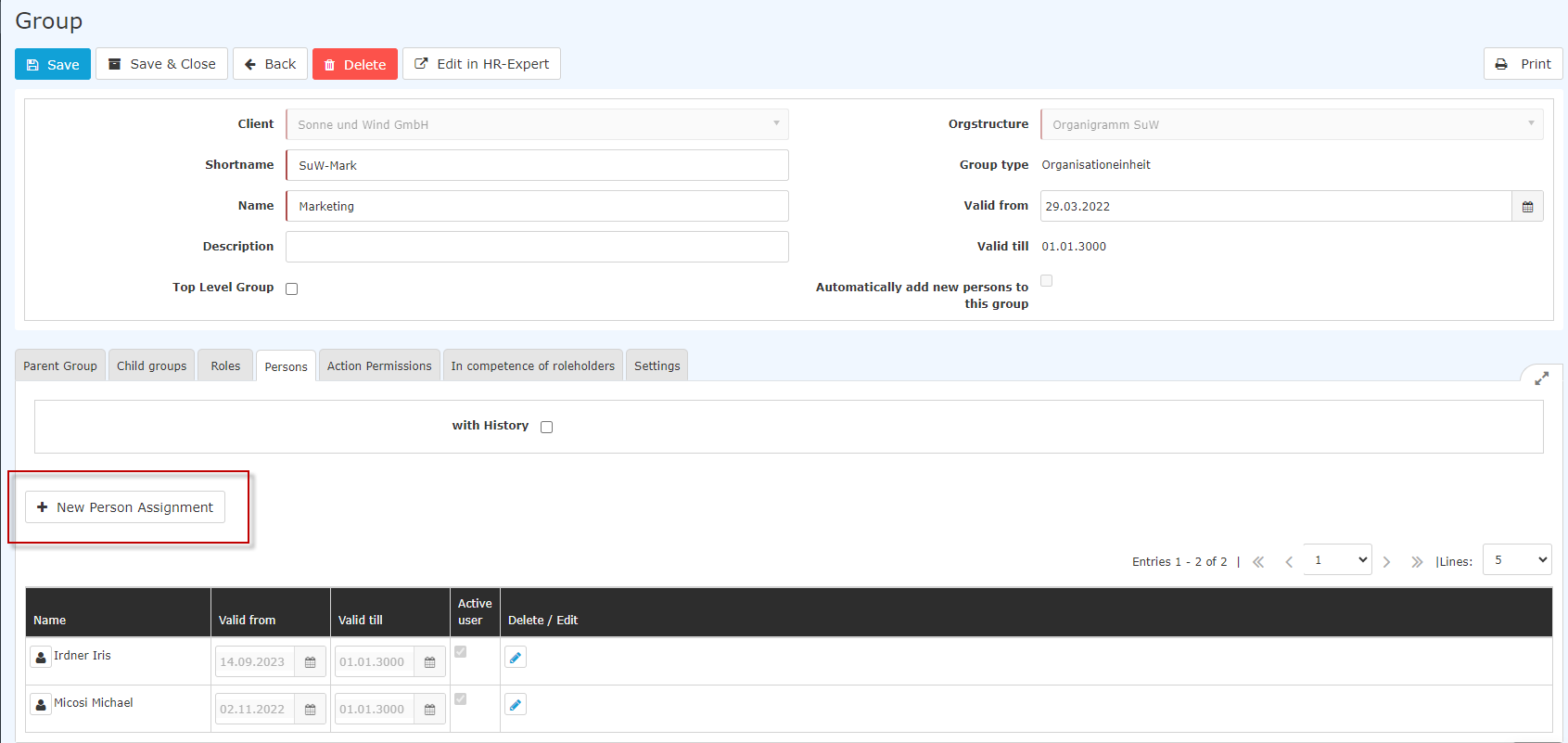
Clicking New person assignment lets you add members to this group.
 |
| Vergrößern |
After clicking, the following table appears:
 |
| Vergrößern |
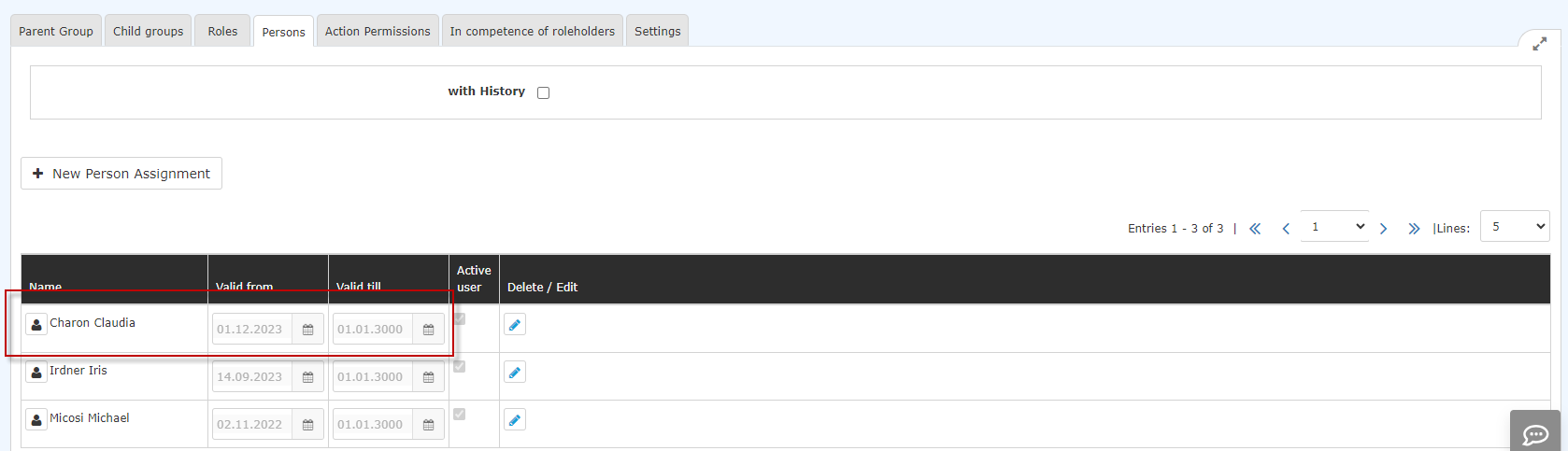
After selecting the person (Claudia Charon in this case; the selection can be made either by simply typing in the field or via the button with the 3 dots), you can already click Save. The fields Valid from and Valid until are either filled with the default values (Valid from: today; Valid until 1.1.3000), or - as in this case - you have the option of entering a specific date to specify that Ms. Charon is to be a member of this group from 01.12.2023 onward.
Note: An employee's previous assignment to a group in the organigram is automatically deleted when the new assignment becomes valid.
 |
| Vergrößern |
 |
| Vergrößern |
Ending membership in a group
Membership in an organigram group can only be ended by switching to another organigram group, since at any one time each employee can be a member of one, and only one, organigram group.
If you want to end membership in an organigram group (organizational unit), you do so by adding the employee to another organigram group.
Membership in a permission group can be ended by entering the "Valid
until" date by clicking the edit icon  and
correcting the "Valid until" date accordingly.
and
correcting the "Valid until" date accordingly.
Additional information
You can find more information on the topic of groups at the following link: Groups
Keine Kommentare vorhanden.