Kalender
General
The calendar allows employees to plan and get an overview of their full-day and half-day absences (vacation, training, illness, ...).
Color coding:
- black font: approved absences
- red font: approvals still open
- Light blue cell: the current day
- Yellow cell: Saturdays
- Orange cell: Sundays
- Green cell: public holiday according to the holiday calendar set for the employee
Functions
Selecting the year
Use the arrow buttons to page forward or back one year. Alternatively, you can select a year from the dropdown list.
Switching to the journal
Clicking the v button in the month field takes you to the monthly journal of the same month.
Switching to correction options
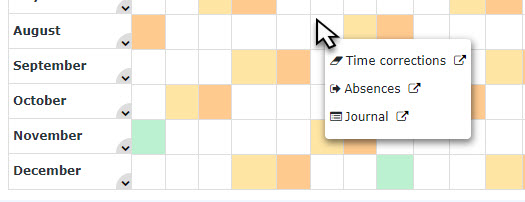
Right-clicking a day field opens a selection list that leads to
- Time correction request
- Absence request
- Switch to the monthly journal
Daily information
Clicking a field (left click) opens an info window that shows, for example, the status of absence reasons.
As long as an absence / special absence request is in progress (status unapproved), the absence reason is entered in red in the calendar.
After a request has been approved, the absence reason appears in black on the days concerned. All work-relevant data is updated (e.g., remaining vacation or scheduled vacation).
Print/Export
The calendar view can also be exported as a PDF or Excel file or prepared for printing. The corresponding icons are located in the upper right corner.
Practical functions
By clicking on the double arrow below / next to the date entry, a menu can be opened to directly display the journal for the relevant month.
It is also possible to right-click in the corresponding cell of the calendar to make a time correction/absence request for the selected day or to open the journal for the selected month.
The calendar view can also be exported as PDF or Excel or prepared for printing. The corresponding symbols (Print, PDF, Excel) are located in the upper right corner.
Keine Kommentare vorhanden.