Assign and change password (by the admin)
General
This chapter deals with the password change options by the HR officer or the local administrator in your company.
1. Assigning a password for the first time
4. Reset 2nd-Factor-Authentication
Information on user activities related to the password can be found here:
In the menu tree under Administration, select the item "Persons".
This menu item provides a list of all created persons (employees) of the client (company).
| Vergrößern |
Using the input fields under Last Name, First Name, Client, Group, Username, Employee ID, E-mail, TA-ID, Active User and Valid from, the list can be restricted accordingly.
For example, by entering "M" in the Last name field, the list can be restricted to persons whose last name contains at least one "M".
To edit the desired person, simply click in the line or on the
edit symbol. .
Assign / reset / delete password
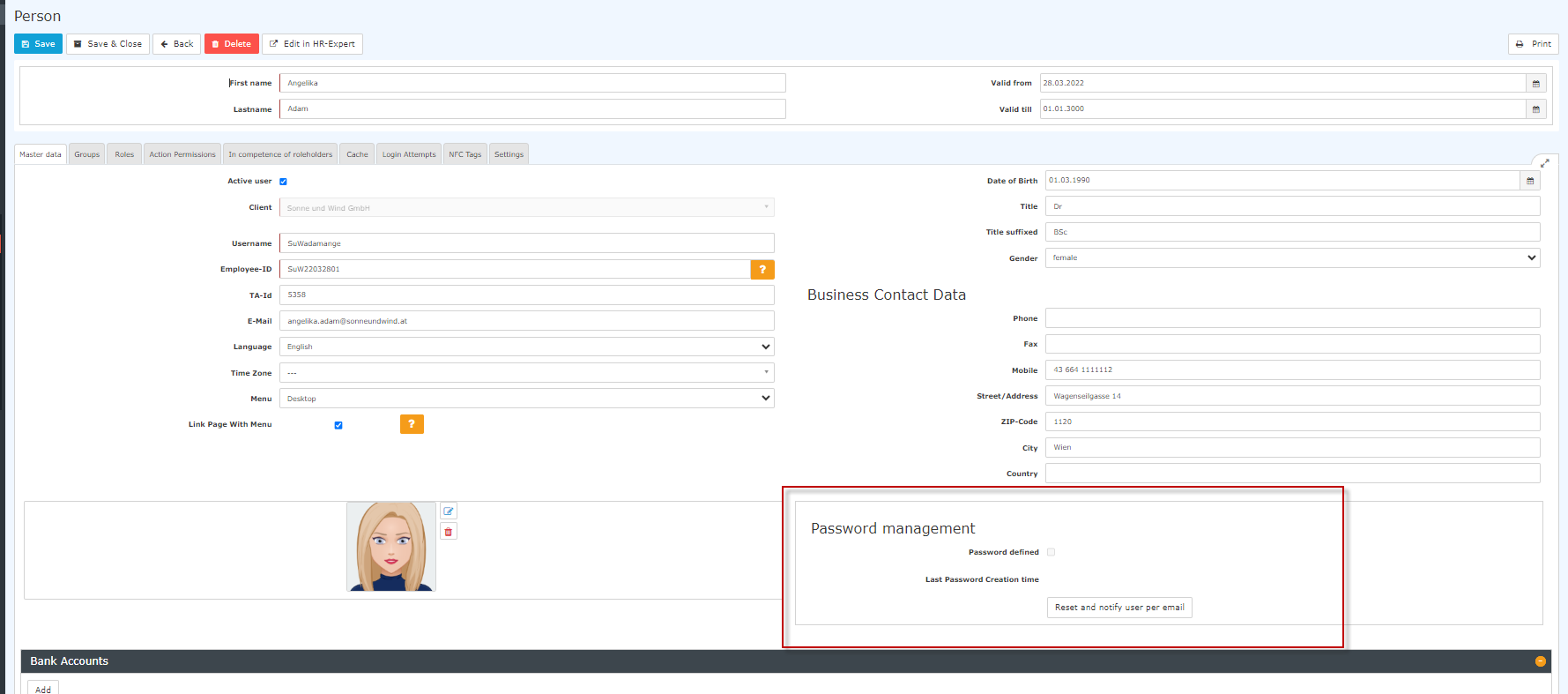
The password manager is located in the person mask (employee profile), under the "Master data" tab.
 |
| Vergrößern |
The following changes can be made here:
1. Assigning a password for the first time
Password assigned: The check mark indicates whether the password has been set. If it is empty, no password has been set for this user yet.
When logging in for the first time, the employee must enter the following data:
Username = Username (case sensitive!)
Password = Standard password = also the username (case sensitive!)
As soon as the employee has logged in with this data, the system prompts them to choose their own login data.
Attention! The password chosen during this step is known only to the employee. It cannot be retrieved in the system!
The first login MUST be done via the browser!
Entry via the app is not possible!
As soon as a password is entered for the first time, the check mark is set, and the date of this password initialization is recorded under "Time of last password assignment".
2. Reset password
When resetting the password, the default password is set, which must be changed by the staff member at the first login after the reset.
So the user must use the following data:
Username = Username (case sensitive!).
Password = Default password = also username (case sensitive!)
Note: It is NOT possible to display the current password. The password chosen by the user is not visible to anyone!
3. Delete password
The deletion of the login option via password is done by "clicking away" the tick in the checkbox "Assign password".
4. Reset 2nd-Factor-Authentication
How to activate 2-factor authentication can be found here.
The button with the name "Reset 2-factor authentication" enables a reset of the login data for those employees who have chosen multifactor authentication for themselves or for whom this has been prescribed.
Of course, this reset is only possible if multifactor authentication has been activated in the settings for this staff member.
Further information
Details on the other tabs in this mask can be found under "Employee administration".
Keine Kommentare vorhanden.