Termination of an employee in Personalwolke Time
Overview
Note: this chapter deals with recording a termination in
Personalwolke Time.
You can find information on recording a termination in HR-Expert under
Recording a termination in HR-Expert.
Contents of this chapter:
Note: The topic of termination and vacation entitlement or vacation
aliquoting is covered here:
Vacation settlement: entitlement, aliquoting,
tiering, forfeiture
Vacation aliquoting upon termination in the first year
of employment
Please note the following with regard to Personalwolke billing in the event of a termination:
- The termination date (Settings / Time tracking / General: Termination date) ends the option to record times.
- A person master record that has the checkmark set for the parameter "Active user" under Settings continues to be billed in full.
- A person master record that does not have the checkmark set for the parameter "Active user" under Settings and is therefore inactive continues to be billed at the fee for inactive users. Inactive persons can be evaluated.
- A deleted person is no longer billed from the month of deletion and can no longer be evaluated.
If the termination date is not set in advance in good time, time tracking continues and the account values will be incorrect. In this case, the termination date must be set retroactively and the daily settlement must be started from the termination date (detailed description below).
Deactivating an employee
When an employee leaves the company and their data is still to be evaluated, the following steps are necessary for the termination:
1. Ending time tracking - entering the termination date
Entering the termination date in time tracking automatically records it in all of the person's time accounts and automatically aliquots the vacation allowance accordingly.
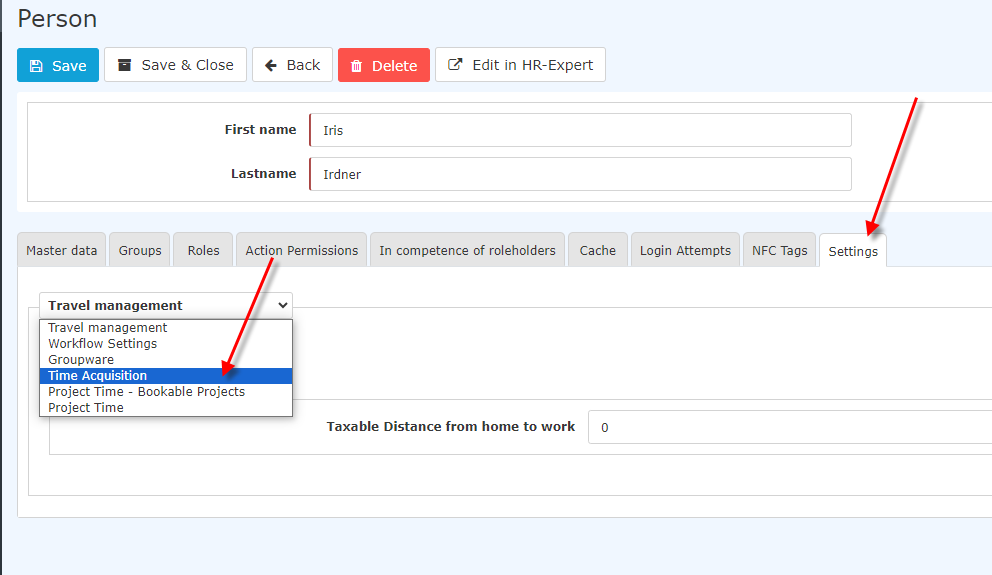
- In the Administration folder, navigate to Persons and click the person who is leaving.
- Go to the Settings tab and switch to Time tracking in the dropdown.
 |
| Vergrößern |
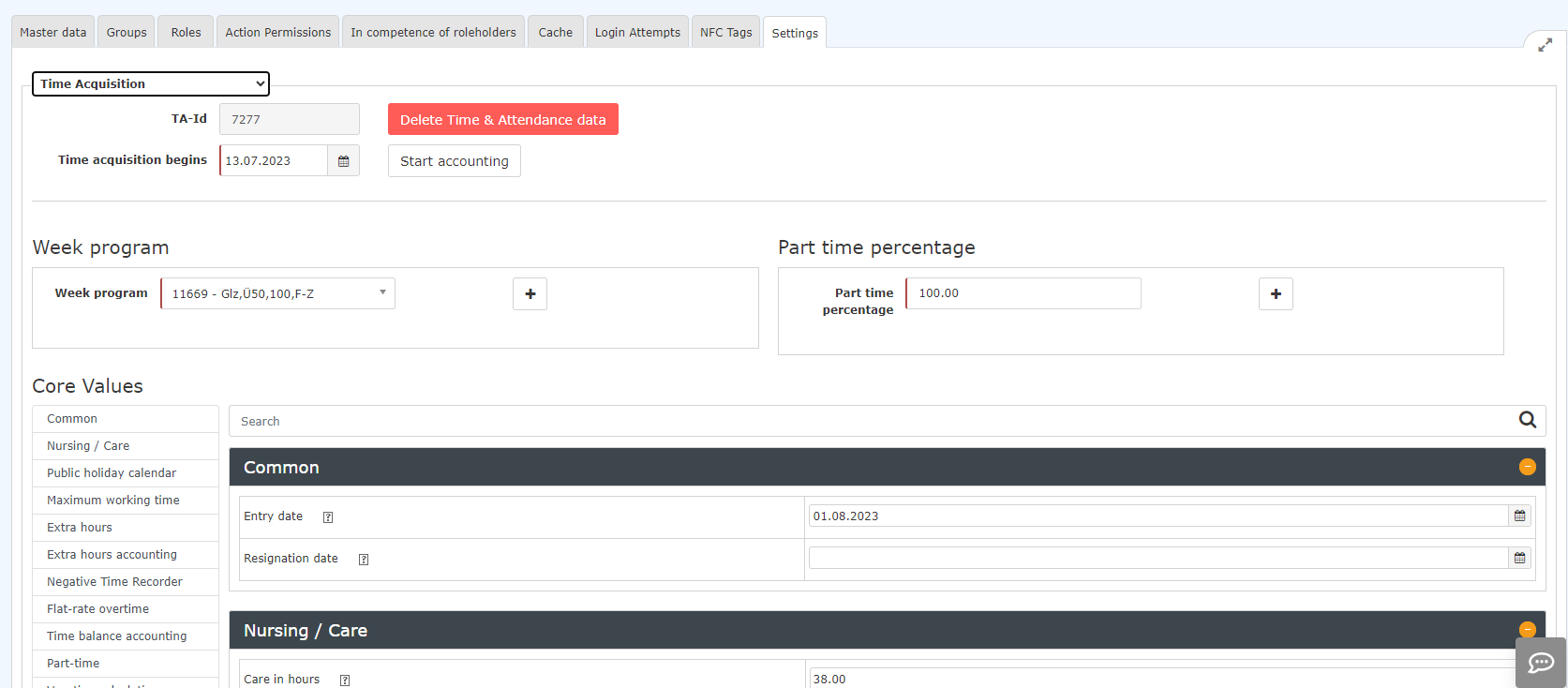
- This screen then opens
 |
| Vergrößern |
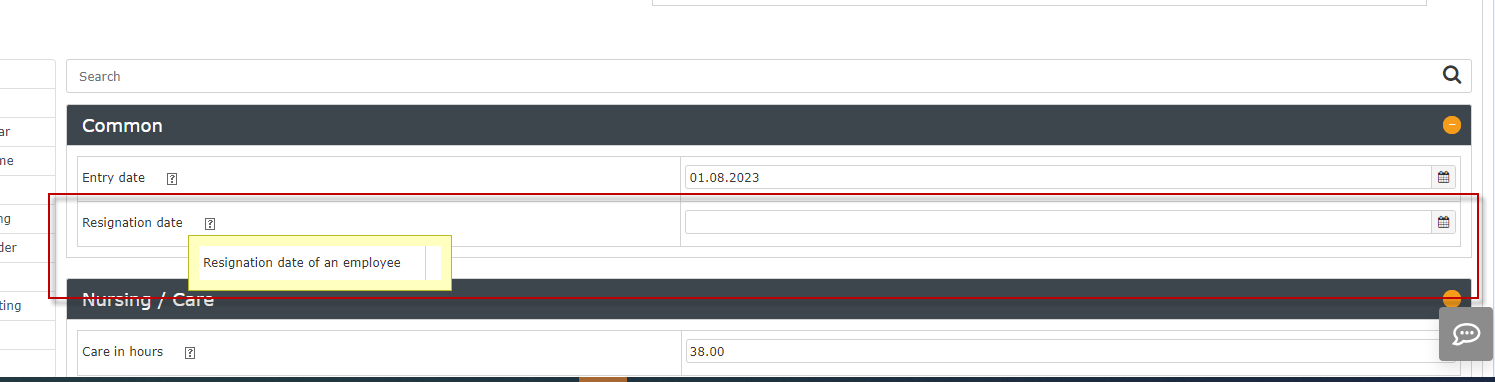
- Scroll to Master data - General.
- Under Termination date, enter the date of termination.
 |
| Vergrößern |
- Scroll back up and save the change.
- The person leaving can then no longer record any times after this date.
2. Deactivating the user:
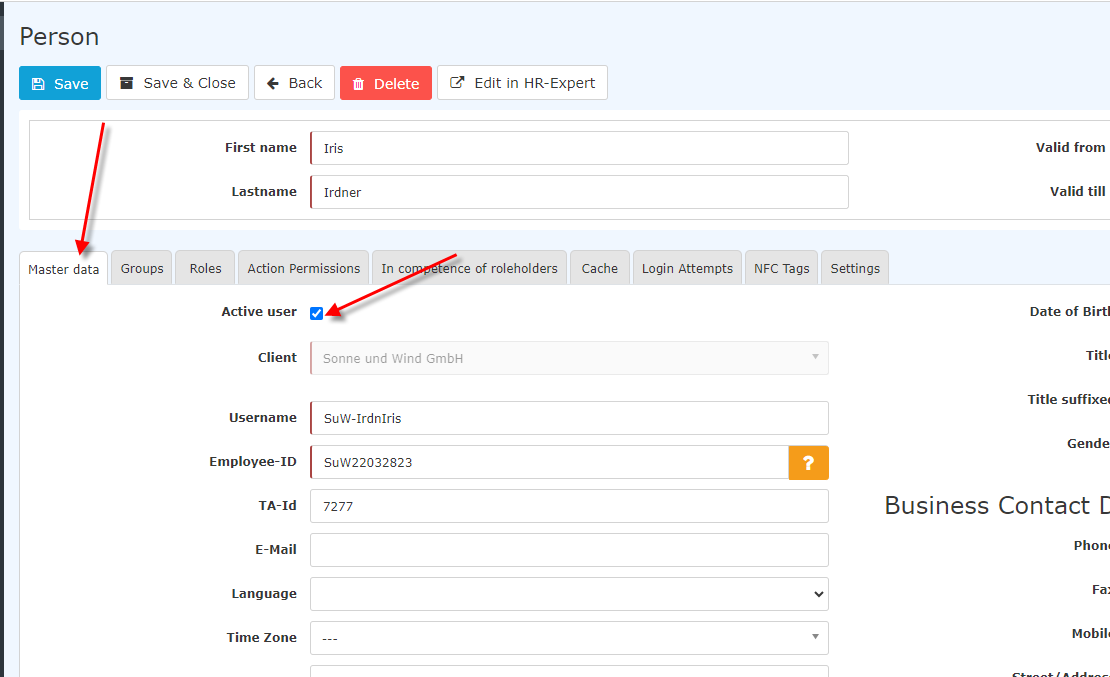
- In the Administration folder, navigate to Persons and click the person who is leaving.
- Open the Settings tab there and clear the checkmark for Active user
 |
| Vergrößern |
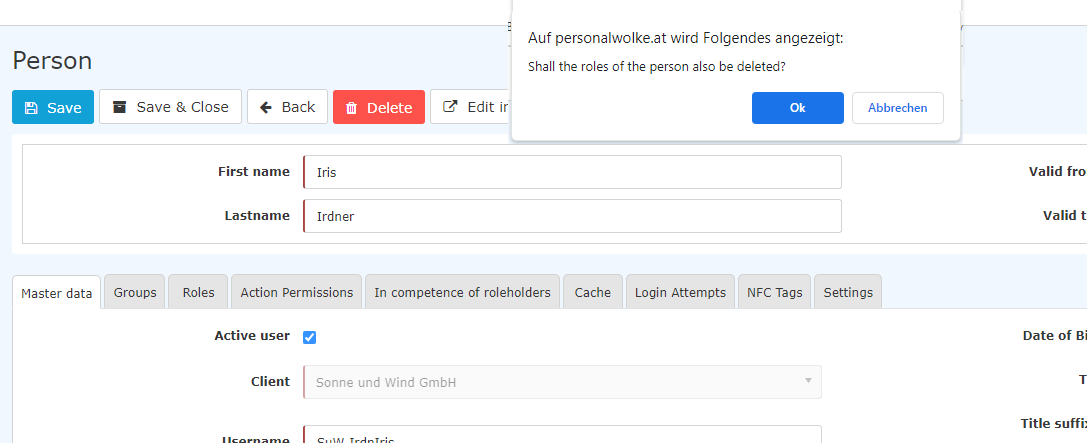
- You then receive the following message:
 |
| Vergrößern |
- If you now click OK, all of the person's roles (e.g. supervisor role, HR role) are deleted. This ensures that no further requests are assigned to this person.
- If you click Cancel, these roles are retained. Please note that this may result in, for example, vacation requests not being processed because the person with the corresponding role has left.
- If you now click Save, the person leaving can no longer log in to Personalwolke.
- After this step, the person is only billed at the reduced rate.
3. Moving to the termination group:
- To keep the organigram up to date and clear (and to be able to run evaluations of terminations if necessary), the person must also be moved to the termination group.
- In the Administration folder, navigate to Persons and click the person who is leaving.
- Switch to the Groups tab.
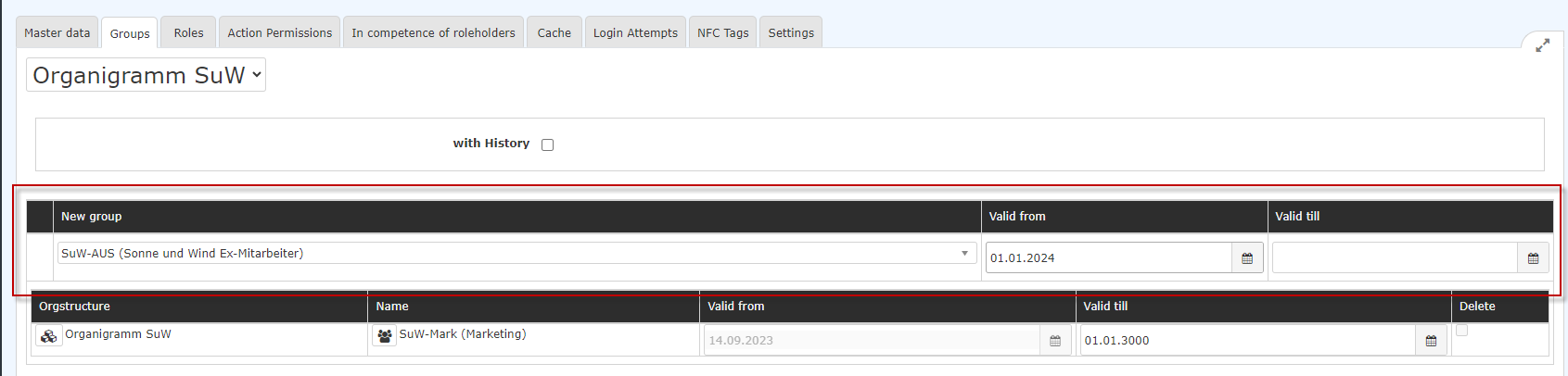
- Now select the group "XYZ-AUS" under "select an option" and enter the termination date under "Valid from". If you leave it empty, the current date is entered. Leave the Valid until field empty.
 |
| Vergrößern |
- Now click Save, and the person is moved to the termination group with the entered date.
Caution: if you want to delete membership in
previous loose groups, please use the "Delete" function (see
the following screenshot)!
Please keep in mind that every active employee must be assigned to a
hierarchical group. Deleting such an assignment without reassigning is not
possible.
 |
| Vergrößern |
Deleting an employee profile
If the data is no longer needed, a person can be deleted.
Caution: this deletes all time tracking data!
Please keep in mind that such a deletion is final.
Restoring the data is difficult and involves additional costs.
In addition, restoration is only possible for a limited time, because the TA IDs (time tracking numbers) are reused after some time for data reasons, similar to inactive mobile phone numbers.
If you still want to carry out a deletion, please back up the person's time tracking data on a local storage medium by generating the time data from the booking list of the person to be deleted and downloading it as a PDF or Excel file.
Procedure:
- In the Administration folder, navigate to Persons and click the person who is leaving.
- Click the red Delete button
 |
| Vergrößern |
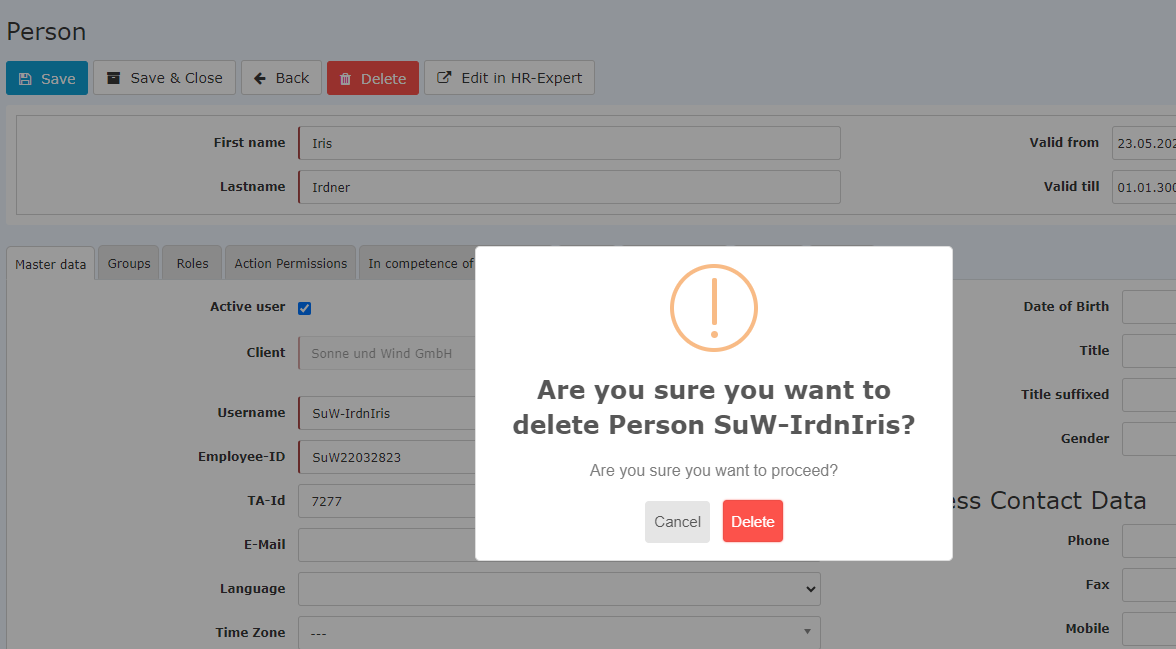
- The following pop-up then appears
 |
| Vergrößern |
CAUTION: if you confirm the pop-up with "Delete", the person's data is irrevocably deleted. It can no longer be evaluated or restored!
Common error in terminations
It can happen that, for an employee who has left, only the "Active user" checkmark is cleared but the termination date is not set. As a result, the time accounts continue to be calculated, so the employee still has a target time and, because of their absence, accumulates negative hours even though they have actually left.
In this case, the termination date must be entered retroactively and the daily settlement must then be started from the termination date. This recalculates the account calculation from that point and thus takes the termination date into account.
Instructions:
- In the person, in the Settings/Time tracking tab, fill in the parameter "General: Termination date" with the termination date.
- Then the daily settlement must be started.
- Go to the menu item "Administration" ⇾ "Persons"
- Select the employee.
- In the "Settings" ⇾ "Time tracking" tab, click the "Recalculate" button.
- In the pop-up, enter the day after the termination date as the date, and select the option "Reapply time models and permissions from master record".
- If the entries are correct, now click "Recalculate"
Please note that the date from which the daily settlement is started must not be before the termination date, since otherwise information will be lost, such as approval permissions (monthly approval, lifting of the 10h / 50h cap, etc.), daily schedules, vacation entitlement values, etc. In this process, the existing data is overwritten with the current values.
Example:
- Max Mustermann left as of 04/30/2020.
- However, the termination date 4/30/2020 is not entered in the person master record until 05/08/2020.
- As a result, time tracking for Max Mustermann continued to be calculated from 05/01 to 05/08.
- To delete the period from 5/1 to 5/8, a daily settlement must be run as of 05/01/2020.
Terminations during the month
For terminations during the month, monthly approvals cannot be submitted for approval early. They can only be submitted on the last day of the month.
The statistics also only show account values as of the end of the month. Therefore, for an employee who left during the month, the values of the month of termination are not shown in the Personalwolke monthly statistics evaluations.
Keine Kommentare vorhanden.