Create a new weekly schedule
In principle, there are two types of weekly schedules:
- Weekly schedules used by several clients: no changes to the data are possible here, only viewing
- Weekly schedules that are client-specific, i.e., used only by your client. These can usually be edited
The individual tabs of the weekly schedule view and editing screen are described below
Step 3: Daily schedules for weekdays, Saturday and Sunday
Step 5: Save and edit the weekly schedule
Step 1: Open the input screen
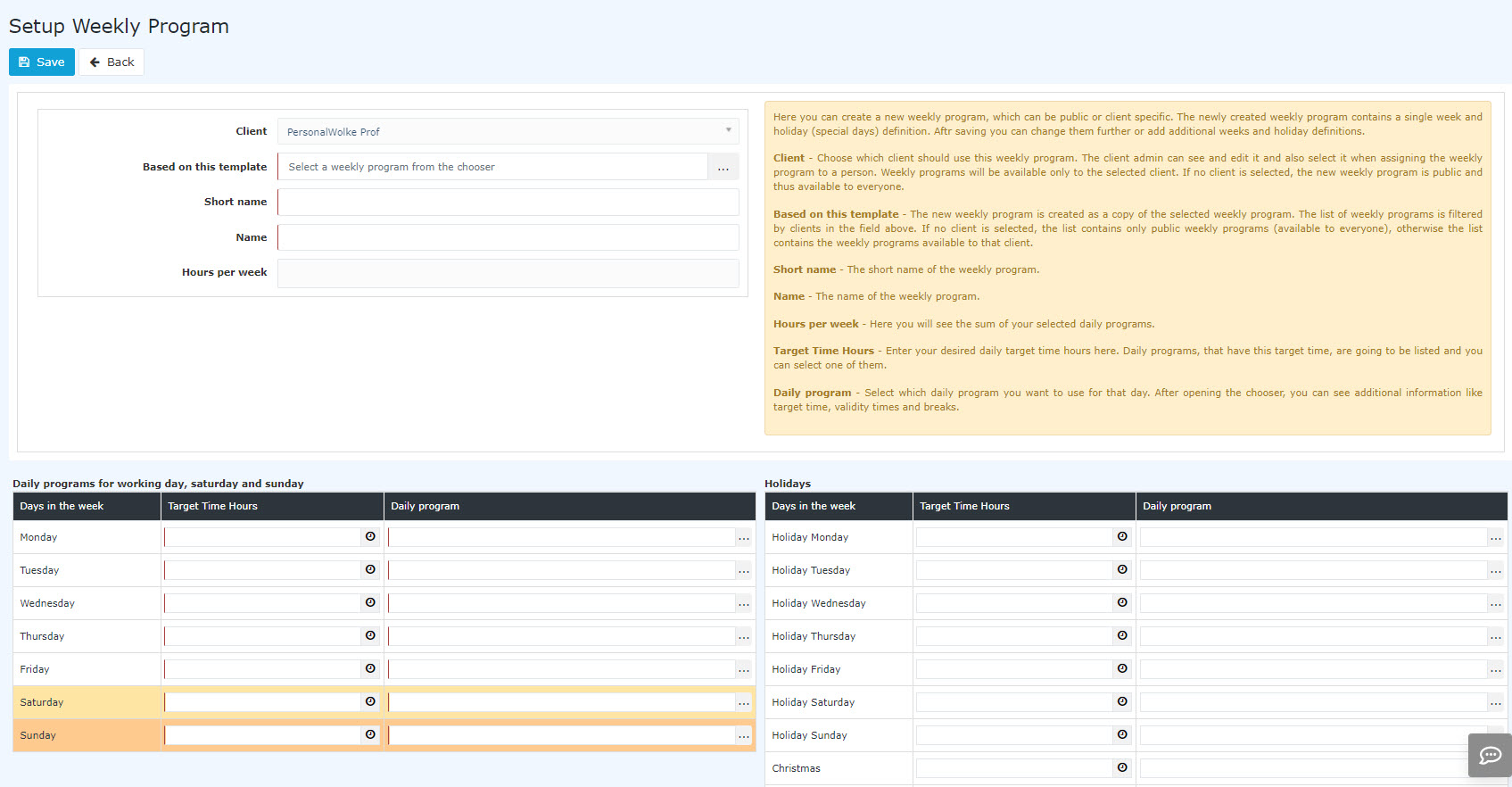
You get to the input screen by clicking the "+ New weekly schedule" button in the overview list of weekly schedules.
The input screen then opens
 |
| Vergrößern |
Step 2: Header
- Client: this field is usually prefilled with your client and can only be changed if you look after several clients.
- Select a template. The daily schedules of the template are also stored in this weekly schedule. Then swap them as you like. Since the holidays are already stored in the template, you save time here.
Enter a short name and long name for the weekly schedule. - The hours per week are calculated automatically by the system based on the daily schedules stored in the weekly schedule. No entry is therefore necessary here.
Step 3: Daily schedules for weekdays, Saturday and Sunday
First select a daily target time. The system then shows you, in the "Daily schedule" column, all daily schedules that offer this target time, for every day of the week, including the weekend.
If you do not find a suitable daily schedule in your selection list, please create one first. You can find information on this under Create a new daily schedule
At first this looks like this:
Note: If the number of hours entered results in only a short selection list, it is displayed directly in the daily schedule field. Simply click the selection button next to the appropriate daily schedule.
Now select, one after the other from Monday to Sunday, the daily schedule that fits that day from the suggestions.
If Saturday and Sunday are non-working days in your company, change the value to 0, whereupon you immediately get suitable daily schedules suggested for these days.
Now you have to fill in all the other days in the weekly schedule. Here is an example of how to create a 38:30 weekly schedule:
 |
| Vergrößern |
In the example you can see that the working time from Monday to Friday is 07:42. On Saturday and Sunday the working time is 00:00.
Step 4: Holidays
You can also store the holidays of the weekly schedule. If you selected a template in which the holidays are already stored, they are adopted.
The program lets you enter your company's individual holiday working time rule. For example, treating December 24 and December 31 as half working days. If November 15 is a non-working day for you, it can also be recorded here.
The working times for other possible regionally limited non-working days can be entered under Holiday 13, 14 and 15.
 |
| Vergrößern |
Step 5: Save and edit the weekly schedule
After you have saved the weekly schedule, the view is automatically switched to edit mode so that you can fine-tune the weekly schedule. You can find out which steps to take next under "Edit a weekly schedule"
Keine Kommentare vorhanden.