Organizational chart
General
The organizational structure allows the client (company) to be divided into groups (departments), and is the top organizational element for all groups that have the same type. This is usually referred to as hierarchical structures, such as the organizational chart. The hierarchical structures play an important role in the query of various lists and views (e.g., querying an attendance list, management lists, ...). However, it is also possible to create organizational structures that have no hierarchical relationship to each other, so-called permission groups (see Permission concept for more information).
An organizational structure is assigned one of the following organization types:
- Hierarchical organizational structure
- Permission groups
The hierarchical organizational structure is represented in an organizational chart of the company (client). This hierarchy determines the relationships between the groups (departments). You can define a top group (department) in the organizational structure (for example, executive board). In addition, higher-level and lower-level groups (assignment in the Groups menu item) determine the appearance of the organizational chart and the relationship between the groups.
One person can belong to only one hierarchical group at a time (but can additionally be a member of various permission groups)!
The organization type "Permission group" is used for groups without a systematic organizational purpose. There is therefore no hierarchical relationship between permission groups. Examples of such groups arise from the need of individual application modules to group employees by a wide range of criteria, e.g., flat-rate employees, all male employees, all apprentices, etc.
One employee can be assigned to several permission groups.
Deputy
- The next higher supervisor is the next logical deputy for a supervisor if no deputy has been explicitly nominated.
- A supervisor should not be able to approve their own requests, and a deputy who reports to them should not be able to do so either.
More information can be found under Roles!
Organizational chart - Search mask
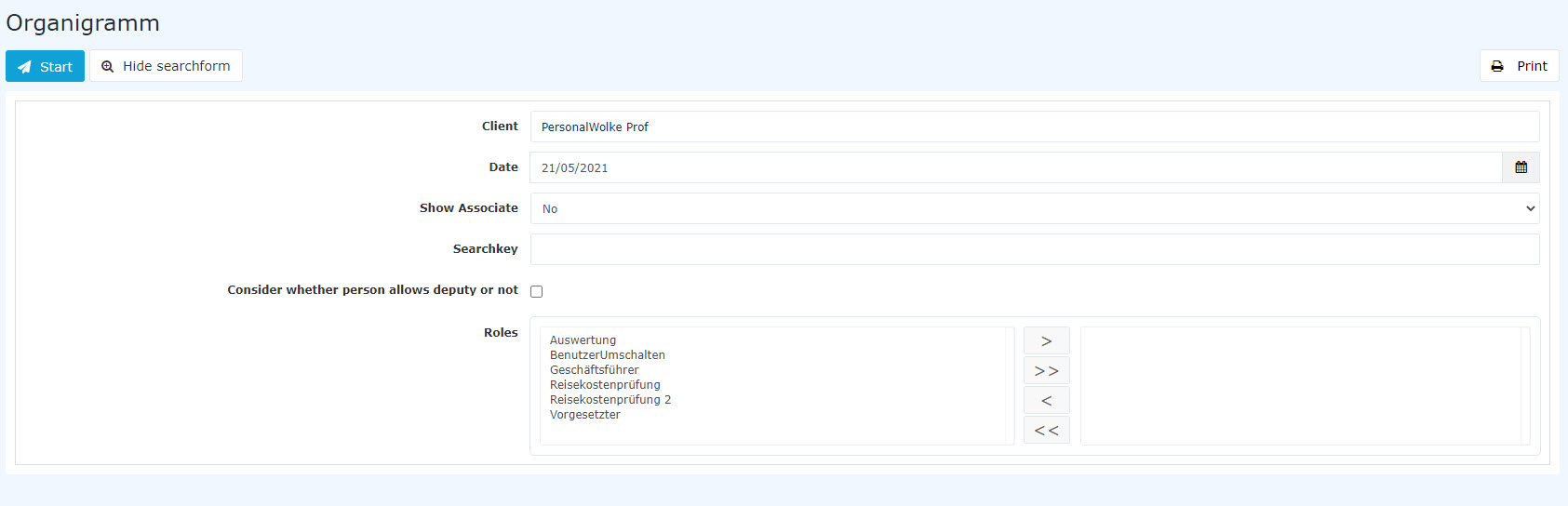
The Organizational chart menu item contains a search mask that lets you search or display the organizational chart by various criteria.
 |
| Vergrößern |
- Client designates the company (preselected)
- Date specifies the key date for which the organizational chart is to be displayed (interesting in the case of expired groups and employees who have left)
- Show employees determines whether the tree view of the organizational chart also shows the employees (Yes) or only the individual groups (No)
- Search terms defines names or parts of names of groups or persons that are highlighted in color in the result
- Consider suppression of deputy determines whether, when the role "Supervisor" is displayed, only the supervisor (checked) or also their deputy (NOT checked) is shown, see also the information in the chapter Settings/Deputy.
- Roles determines whether the names of the employees who hold the selected roles are displayed in the organizational chart (select roles and move them to the right-hand box with the right arrow button to choose them)
The query is executed by clicking Start.
 |
| Vergrößern |
Using Show search mask, the search parameters can be adjusted, for example as follows:
 |
| Vergrößern |
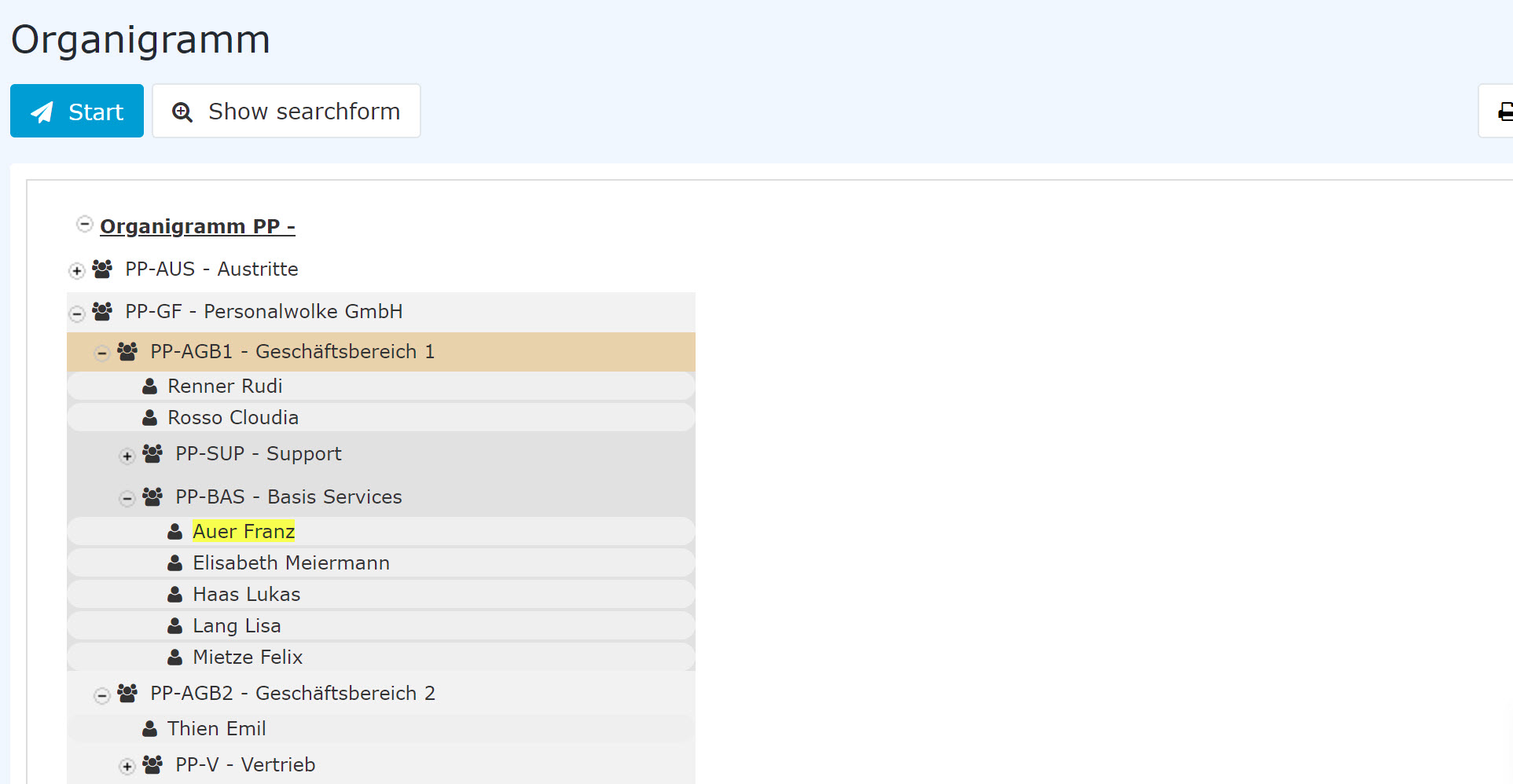
Changing the parameters results in the following organizational chart:
 |
| Vergrößern |
Here you can clearly see the individual groups and employees of the company. The right half of the organizational chart shows who takes on the role "Supervisor" for the respective person / group, i.e., for the group PB-SUP (Support), "Honey Helga" is the supervisor - as for all other persons / groups of the company. The name "Golf Rolf" is highlighted in yellow because of the search term "Golf".
The following 3 chapters present a very clear method of maintaining roles / groups / persons.
Practical functions - Roles
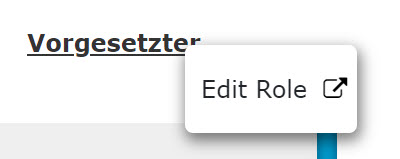
If you selected roles to be displayed in the search query (in this case Supervisor), you can right-click the role name to open a menu for editing this role directly - i.e., to jump straight to the administration page of the role.
Practical functions - Groups
 |
| Vergrößern |
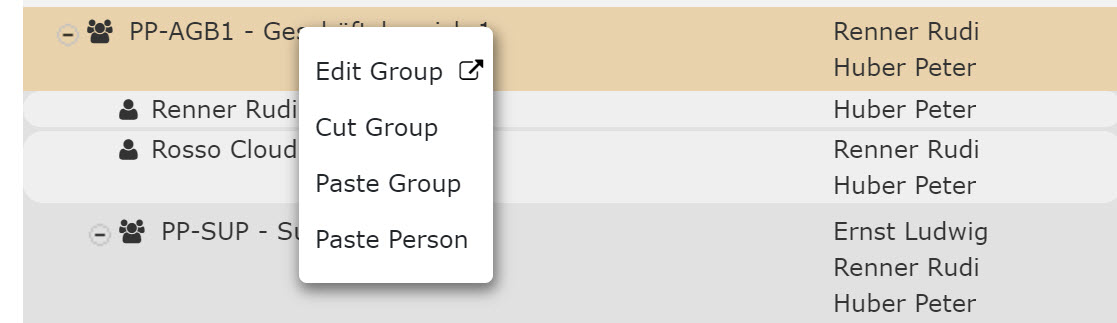
Right-clicking the group name opens a menu from which the following functions can be called:
- Edit group - this link takes you directly to the administration page for the selected group
- Cut group - this link lets you cut the group from its current position in the organizational chart
- Paste group - this link lets you paste a previously cut group at another location
- Paste person - this link lets you add a previously cut person to the selected group
Practical functions - Persons
 |
| Vergrößern |
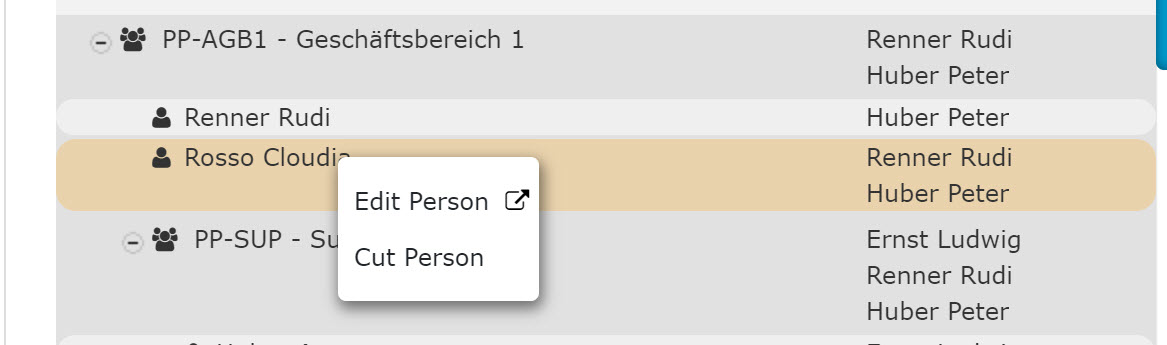
Right-clicking a person opens a menu from which the following functions can be used:
- Edit person - this link takes you directly to the administration page for the selected person
- Cut person - this link lets you cut the person from the current group in order to paste them into another group (see Groups - Paste person)
Keine Kommentare vorhanden.