Organizational chart - Move employees to another department (group)
General
The organizational chart provides an intuitive and convenient way to move employees from one hierarchical group to another within the company.
IMPORTANT: Adding / removing an employee to / from a PERMISSION group is NOT possible via the organizational chart! For this use case, please proceed as described under Move employees to another department or Add employees to a group.
Procedure
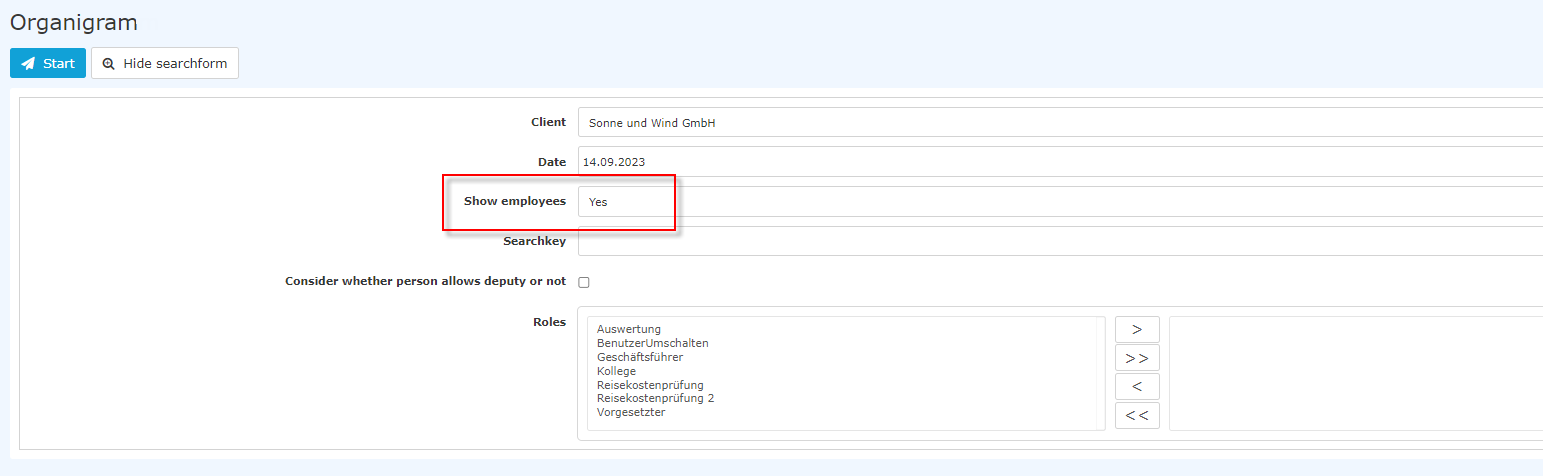
In the menu tree under Administration, select Organizational chart. Now change the value for Show employees from No to Yes.
 |
| Vergrößern |
Then click Start to generate the organizational chart.
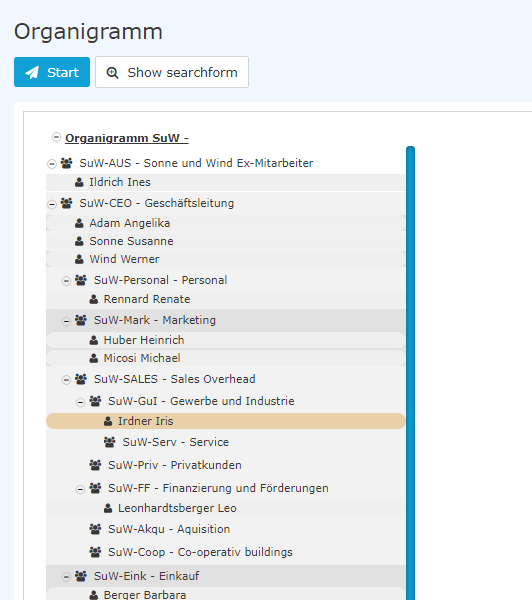
This overview shows the groups and their respective employees, as well as the position of the group within the organizational chart (hierarchy). In the example above, you can see that the group () SuW-CEO Management has three employees (
) and the group SuW-SALES includes two subgroups, SuW-Akqu and -Coop, which currently have no assigned employees.
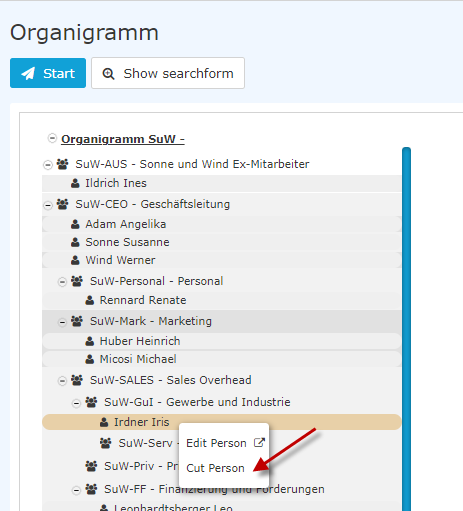
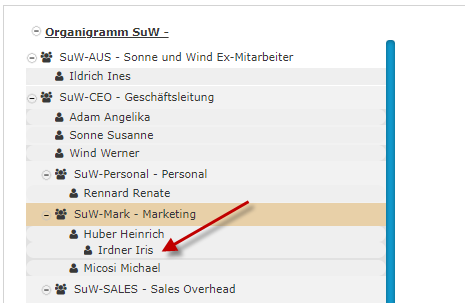
We now want to move the employee "Irdner Iris" from the group SuW-GuI - Gewerbe und Industrie to the group SuW-Mark. To do this, we right-click Irdner Iris and select Cut person.
Then right-click the group SuW-Mark and select Paste person.
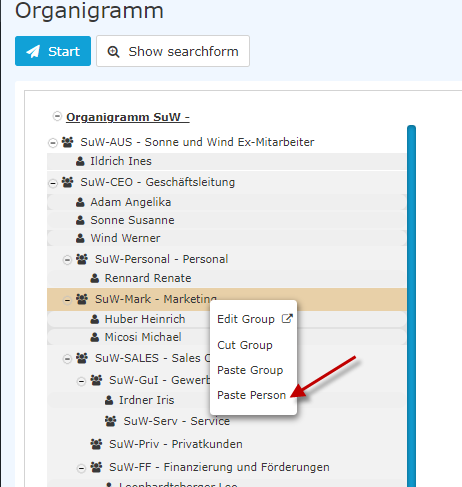
The change is visible immediately.
The changes are also immediately visible in the person administration under the Groups tab. Before cutting and moving to the new group...
 |
| Vergrößern |
... and after:
 |
| Vergrößern |
Additional information
You can find another way to add an employee to a new group here: Move employees to another department and Add employees to a group.
For more information on the organizational chart, see: Organizational chart.
The HR-Expert application also offers the option to change department/group membership directly in the employee profile. You can find information on this screen under Organization-Groups tab.
Keine Kommentare vorhanden.